kitty vs Ghostty compared: Ghostty's no-config setup, native tabs and 1.4 scrollback compression against kitty's layouts, remote control and image protocol.
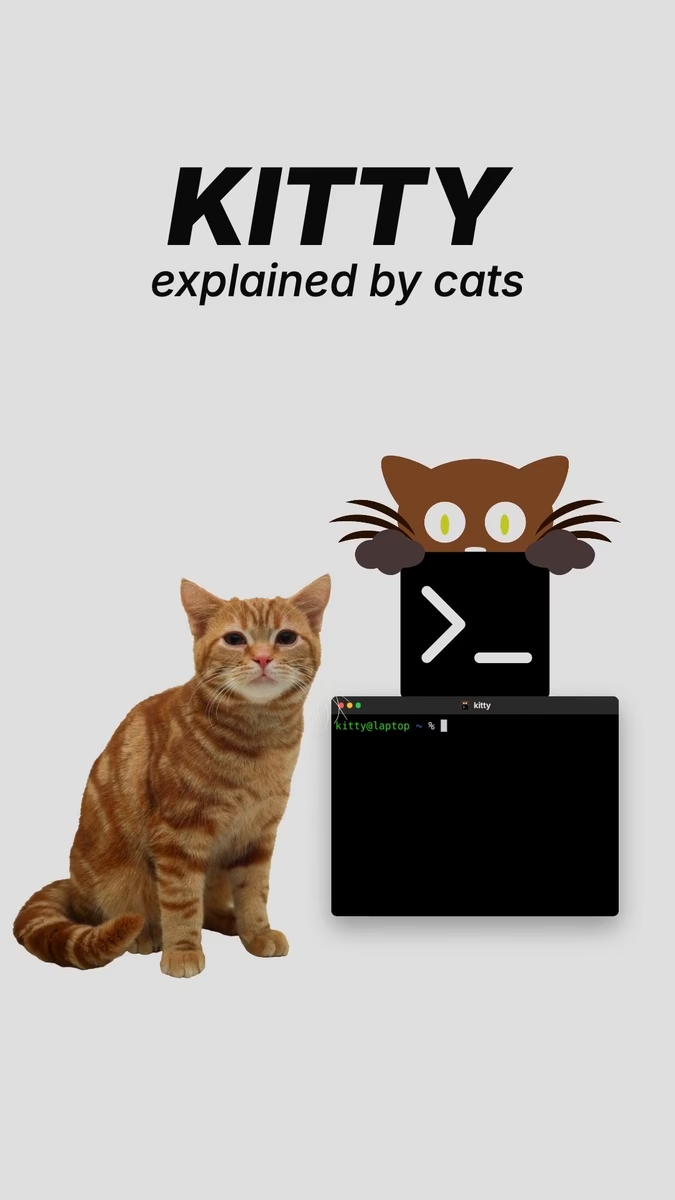
Kitty vs Ghostty, explained by cats. Kitty uses kitty. The terminal app. She posts a video about it. Then the comments roll in. "Just use Ghostty." So Kitty tries Ghostty. Ghostty just works. No config file needed. A nice font built in.
Its tabs are the desktop's tabs. So it looks like every other app. kitty is built for tinkering. Ctrl+Shift+L flips through seven layouts. And scripts can drive it. One command opens a window. Another types into it. kitty made a way to show pictures in terminals.
Ghostty now supports every part of it. Even animated GIFs. And old lines you scrolled past get squeezed. Up to 90% less memory. Ghostty suits cats who want zero setup. kitty suits cats who script everything. Kitty sticks with kitty. She is called Kitty, after all.
kitty and Ghostty are both GPU-rendered terminal emulators for Linux and macOS, and they make opposite bets. Ghostty wants to work the moment you open it and look like the rest of your desktop; kitty hands you layouts, a scripting interface and its own image protocol, and expects you to configure it.
What changes when you switch
A terminal emulator is the window you type into. The shell (bash, zsh, fish) runs inside it, so switching from kitty to Ghostty keeps your prompt and aliases exactly as they were. What changes is everything around the shell: how text is drawn, how tabs and splits work, which escape codes the terminal understands and how much memory it uses.
Both draw text on the GPU, both run on Linux and macOS, and both are configured with a plain text file. The differences are in what each one does before you open that file, and what it lets you do once you have. If you are new to kitty itself, the earlier kitty video covers the basics.
Ghostty: ready with no config
Ghostty's documentation calls this its 'Zero Configuration Philosophy': it is meant to work out of the box for most people. It embeds a default font, JetBrains Mono, and has Nerd Font icons built in, so a fresh install with no config file at all already renders prompt themes and file icons correctly. If you do want to change something, the file is ~/.config/ghostty/config.ghostty (versions before 1.2.3 called it plain config), and Ctrl+Shift+, reloads it on Linux without a restart.
Native tabs and windows
On Linux, Ghostty is a GTK app built with libadwaita, and its windows, tabs and splits are native widgets. Open a tab with Ctrl+Shift+T and the tab bar is the same one GNOME's own apps use:
Ghostty (top) and GNOME Text Editor (bottom) use the same desktop tab bar
Kitty vs Ghostty, explained by cats. Kitty uses kitty. The terminal app. She posts a video about it. Then the comments roll in. "Just use Ghostty." So Kitty tries Ghostty. Ghostty just works. No config file needed. A nice font built in.
Its tabs are the desktop's tabs. So it looks like every other app. kitty is built for tinkering. Ctrl+Shift+L flips through seven layouts. And scripts can drive it. One command opens a window. Another types into it. kitty made a way to show pictures in terminals.
Ghostty now supports every part of it. Even animated GIFs. And old lines you scrolled past get squeezed. Up to 90% less memory. Ghostty suits cats who want zero setup. kitty suits cats who script everything. Kitty sticks with kitty. She is called Kitty, after all.
That native look has a cost. Ghostty 1.4 needs GTK 4.18 and libadwaita 1.7, and the release notes say Ubuntu 24.04 LTS doesn't meet that requirement: with older libraries, Ghostty exits at startup. On an older distribution, use the Flatpak package or stay on an earlier Ghostty release.
kitty: built for tinkering
kitty draws its own interface instead of borrowing the desktop's. Its tab bar sits at the bottom of the window by default and looks the same on every desktop and operating system. Inside a tab, kitty has its own 'windows', which most other tools call panes, and it arranges them for you.
Layouts
Press Ctrl+Shift+Enter to open a new window in the current tab, and kitty places it according to the active layout. There are seven: stack, tall, fat, grid, splits, horizontal and vertical. Ctrl+Shift+L runs the next_layout action and moves to the next one:
Stack shows one window full size and hides the rest behind it, which is handy for focusing on one thing. Tall and fat give one large window plus a column or row of smaller ones. Splits lets you divide windows by hand, the way Ghostty's splits work. If you only ever use two or three of them, list those in enabled_layouts in kitty.conf; the first one listed becomes the default.
Ghostty has tabs and splits too, but it doesn't rearrange them into preset layouts. You decide where each split goes.
Remote control
kitty can be driven from the command line with kitten @. It is off until you set allow_remote_control yes in kitty.conf (or set a remote_control_password). With that on, kitten @ launch --title Output --keep-focus cat opens a new window running cat and leaves your cursor where it was. Then kitten @ send-text --match title:^Output hello finds that window by its title and types into it:
The same commands can resize windows, change layouts, set colours and read the text on screen, so a shell script can build and drive a whole workspace. For example, a start-of-day script launches a window titled 'server' and another titled 'tests', switches to the tall layout, then sends npm run dev to the first and the test watcher command to the second.
Commands typed inside kitty reach it directly. A script running elsewhere, such as from a keyboard shortcut in your window manager, needs kitty started with --listen-on unix:/tmp/mykitty and the --to flag to find it.
Ghostty's scripting is narrower. On Linux its command line can open a new window or tab in a running instance (ghostty +new-window, ghostty +new-tab), and on macOS it supports AppleScript. kitty's remote control goes further, down to picking a window by its title and typing into it.
Pictures in the terminal
kitty also created the kitty graphics protocol, a set of escape codes that lets a program send an image to the terminal and place it among the text. The icat kitten uses it: kitten icat cat.gif shows the image right in the terminal, and an animated GIF plays. Other terminals adopted it too, and kitty's docs list WezTerm, Konsole and Ghostty among them, but Ghostty's support was incomplete until 1.4.
Ghostty 1.4, released on 27 October 2026, finished the job. It added animation and relative placements, the last major pieces it was missing, and the release notes say its implementation now covers 100% of the published specification. That makes Ghostty the first terminal outside kitty itself to do so. In practice, kitten icat with an animated GIF now animates in Ghostty instead of showing a single still frame.
So image support is no longer a reason to pick kitty over Ghostty: programs that use the protocol now have two terminals that support all of it.
Scrollback compression in Ghostty 1.4
Scrollback is the history above the visible screen, and after a long build log it can hold a lot of text. Ghostty 1.4 compresses the scrollback pages you can't see, which the release notes say cuts the physical memory they use by 70% to 90% for typical text-heavy history.
Compression only runs while the terminal is idle, and pages are decompressed when you scroll back or search, so fast output isn't slowed down. Because history is cheaper to keep, the default scrollback limit went up from 10 MB to 50 MB per terminal. Compression works on macOS and 64-bit Linux, and the scrollback-compression option turns it off.
To see it for yourself, flood a terminal with seq 1 3000000, leave it alone for a moment, then check the process's resident memory (RSS) in btop or ps. The notes point out that compression lowers resident memory, not virtual memory, so the virtual size won't move much.
Which one to choose
Pick Ghostty if you want a terminal that is ready the moment it is installed, and that looks like a native app on GNOME or macOS. Fonts and tabs need no setup, and 1.4 brought it level with kitty on images.
Pick kitty if you want to shape the terminal around your work: automatic layouts, a tab bar you can restyle, and kitten @ for scripting windows. It doesn't depend on a recent GTK, so it also runs on older distributions where Ghostty 1.4 won't.
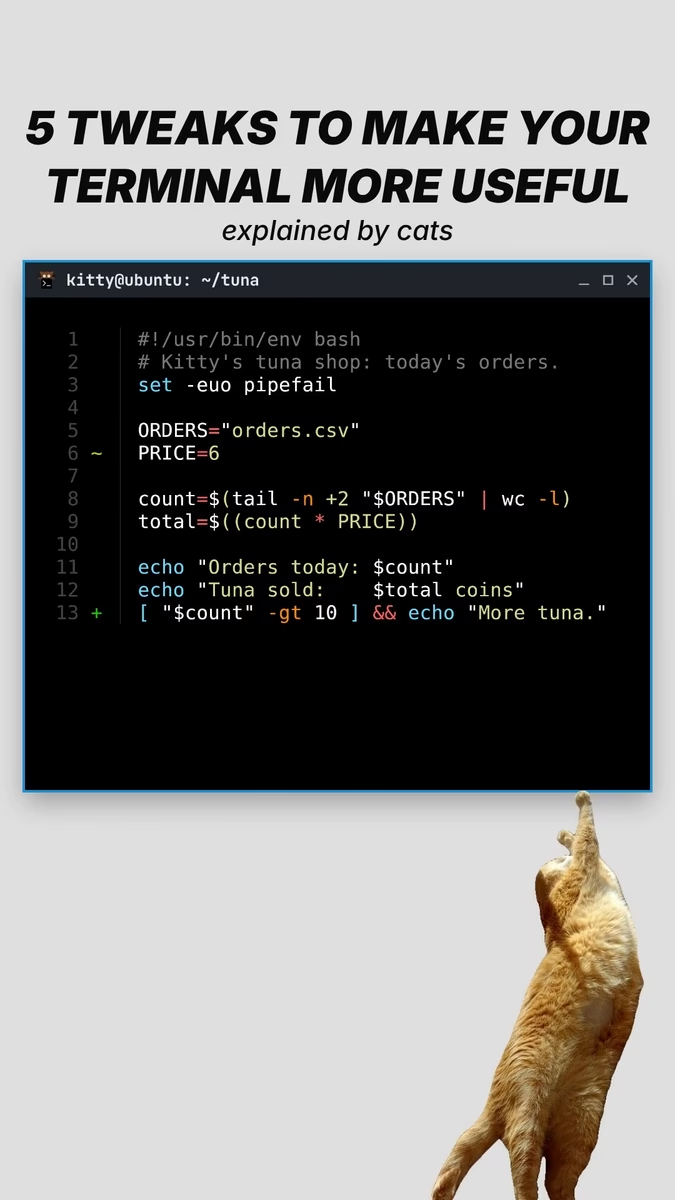
Neither choice is permanent. Your shell config moves with you, so the cost of trying the other one is an install and an afternoon. If you want to tune whichever you pick, 5 Tweaks to Your Terminal and Supercharging Your Terminal work in both.
Common mistakes
Running kitten @ without allow_remote_control or a password set. The command fails because kitty refuses remote control by default.
Leaving allow_remote_control yes on for good. kitty's docs call it a blunt instrument: any program running in the terminal, including over SSH, can then control kitty. Remote control passwords let you grant narrower permissions.
Installing Ghostty 1.4 from a distribution with GTK older than 4.18, such as Ubuntu 24.04. Use the Flatpak instead.
Judging Ghostty's memory by its virtual size, which compression doesn't reduce. Look at resident memory.
Expecting kitten icat to work inside tmux or screen. Images may not get through a multiplexer that hasn't added support for the protocol.
Key takeaways
Ghostty works with no config file, ships JetBrains Mono and uses the desktop's own tabs.
kitty has seven layouts, cycled with Ctrl+Shift+L, and kitten @ lets scripts open windows and type into them.
Ghostty 1.4 supports 100% of the kitty graphics protocol, so animated GIFs from kitten icat play in both.
Ghostty 1.4 compresses off-screen scrollback while idle, cutting the memory it uses by 70% to 90% for typical text.
Ghostty 1.4 needs GTK 4.18 and libadwaita 1.7, so older distributions need the Flatpak.